


Most likely, no not fully. Many marketers set up Google Analytics 4 (GA4) conversions once and never check them again. Over time, small setup errors quietly break your data.
GA4 works differently from the old Universal Analytics. It tracks “events” and marks some as “conversions,” not “goals” in the classic sense. This shift confuses even experienced marketers.
This article shows you how to check your current setup, spot common mistakes, and fix them. You’ll also learn one often-missed technique that most guides skip.
What “Goal Tracking” Actually Means in GA4
GA4 doesn’t have goals. It has events, and you mark specific events as conversions. This single change breaks more dashboards than any other GA4 update.
In Universal Analytics, you built goals inside a separate menu. You set rules like “user visited /thank-you-page” and called it done. GA4 flips this model. Every user action is an event first. You then choose which events count as conversions.
This means your “goals” are really just conversion-marked events. If you don’t understand this difference, your reports will look wrong. You might see zero conversions even though sales are happening.
Events vs. Conversions vs. Key Events
GA4 recently renamed “conversions” to “key events” for some users. The core idea stays the same. You pick the events that matter most to your business and label them.
Not every event should become a key event. Marking too many events as conversions dilutes your data. Focus on actions that show real business value, like purchases, sign-ups, or demo requests.
Common GA4 Tracking Mistakes That Skew Your Data
Small setup errors cause big reporting problems. Here are the mistakes that show up most often in GA4 accounts.
Mistake 1: Not Verifying Events Actually Fire
Many marketers assume an event works because they set it up. They never test it. Use GA4’s DebugView to confirm events fire correctly before trusting any report.
Mistake 2: Double-Counting Conversions
Some setups count the same action twice. A form submission might fire once through a native GA4 event and again through a custom trigger. This inflates your numbers and hides your real conversion rate.
Mistake 3: Marking Too Many Events as Key Events
When everything counts as a conversion, nothing stands out. Limit key events to actions that directly tie to revenue or lead generation. Keep the list short and meaningful.
Mistake 4: Ignoring Cross-Domain Tracking Gaps
If your checkout process moves across domains or subdomains, sessions can break. This makes a single customer journey look like two separate visits. Cross-domain tracking needs manual setup in GA4; it does not happen automatically.
Mistake 5: Forgetting to Exclude Internal Traffic
Your own team’s visits and testing sessions pollute your data. Without an internal traffic filter, your conversion numbers include clicks that never came from a real customer.
How to Audit Your Current GA4 Goal Setup
A proper audit takes less than 30 minutes and catches most problems fast. Follow these steps in order.
Step 1: Check Your Events List
Go to Admin > Events in GA4. Review every event marked as a key event. Ask yourself if each one genuinely reflects a business outcome.
Step 2: Use DebugView to Test Live
Open DebugView and browse your own site in a test session. Watch which events fire and in what order. This step catches broken triggers instantly.
Step 3: Compare GA4 Numbers Against a Second Source
Cross-check your conversion counts against your CRM, e-commerce platform, or payment processor. If the numbers don’t roughly match, something in your GA4 setup needs fixing.
Step 4: Review Attribution Settings
GA4 defaults to data-driven attribution for most accounts. Confirm this setting matches how your team wants to credit conversions across channels. A mismatched model can make certain campaigns look stronger or weaker than they really are.
An Overlooked Fix: Server-Side Tagging for More Reliable Data
Most GA4 guides stop at browser-based tracking. They miss a growing accuracy problem: ad blockers and browser privacy settings now block a meaningful share of client-side tracking scripts.
Server-side tagging routes your tracking data through your own server instead of directly through the user’s browser. This approach reduces data loss from blockers and improves tracking reliability. According to industry experts, many companies now see noticeably higher event counts after switching to server-side setups.
This fix requires more technical setup than standard GA4 tracking. Small businesses may not need it yet. But for teams noticing gaps between GA4 numbers and actual sales, this is worth exploring before blaming other parts of the funnel.
Mastering Custom Conversion Setup in GA4
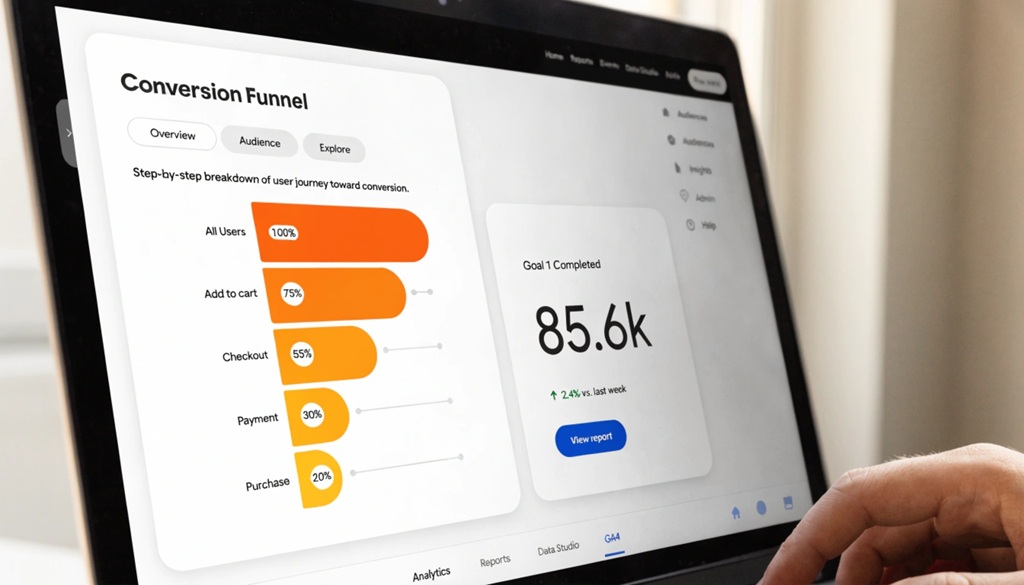
Setting up custom conversions correctly ensures your analytics map directly to your unique business goals while eliminating data fragmentation down the road. Once your GA4 events are properly calibrated to track your most critical user interactions, take the next step and learn improve your conversion rate optimization strategy today to turn those newly measured insights into maximum revenue.
Define the Action Clearly First
Before touching GA4, write down exactly what user action you want to track. Vague definitions lead to messy event names and confusing reports later.
Use Consistent Naming Conventions
Name your events in a clear, repeatable pattern. Consistent naming makes your reports easier to read across multiple team members.
Test Before You Trust
Always test a new custom conversion in DebugView first. Confirm it fires only when the intended action happens, not on every page load or unrelated click.
How to Know If Your GA4 Data Is Trustworthy
Trustworthy GA4 data shows consistent patterns that match your business reality. If your sales team reports steady growth but GA4 shows a decline, something is broken.
Check your data for these warning signs. Sudden drops or spikes with no clear cause often signal a tracking issue, not a real business change. Numbers that don’t move at all across different campaigns also suggest a broken setup.
Run a monthly check on your key events list. Marketing platforms update often, and small changes elsewhere on your site can silently break a tracking script.
FAQ
How do I know if my GA4 goals are set up correctly?
Check DebugView while browsing your own site to confirm events fire as expected. Then compare your GA4 conversion numbers against a second source, like your CRM or payment processor. If the numbers roughly align, your setup is likely correct.
Why does GA4 show zero conversions even though I’m getting sales?
This usually happens because no event was marked as a key event, or the tracking code isn’t firing correctly. Check your Admin > Events section and confirm the right events are marked as key events.
What’s the difference between an event and a conversion in GA4?
An event is any tracked user action, like a click or page view. A conversion is an event you’ve specifically marked as important to your business. Every conversion starts as an event, but not every event becomes a conversion.
How often should I audit my GA4 tracking setup?
A monthly check works well for most businesses. High-traffic sites or those running frequent site changes should check more often, since new code or design updates often break existing tracking.
Can I fix GA4 tracking mistakes without a developer?
Many basic fixes, like adjusting which events count as key events, don’t require a developer. More advanced fixes, like server-side tagging or cross-domain tracking, usually need technical help.
Conclusion
Accurate goal tracking in GA4 takes more than a one-time setup. It needs regular checks, clear naming, and an understanding of how events and conversions actually work together.
Start with a quick audit of your current key events. Test them in DebugView, compare the numbers against a second data source, and fix any gaps you find. Small, regular checks prevent the kind of silent data errors that lead to bad marketing decisions.